


Heya, my fitfam!
Depending on your preferences and circumstances, you could easily follow the meal plan I’ve provided with #BodyByCoachJeff online transformation coaching, or using a food tracking app integrated with our coaching app.

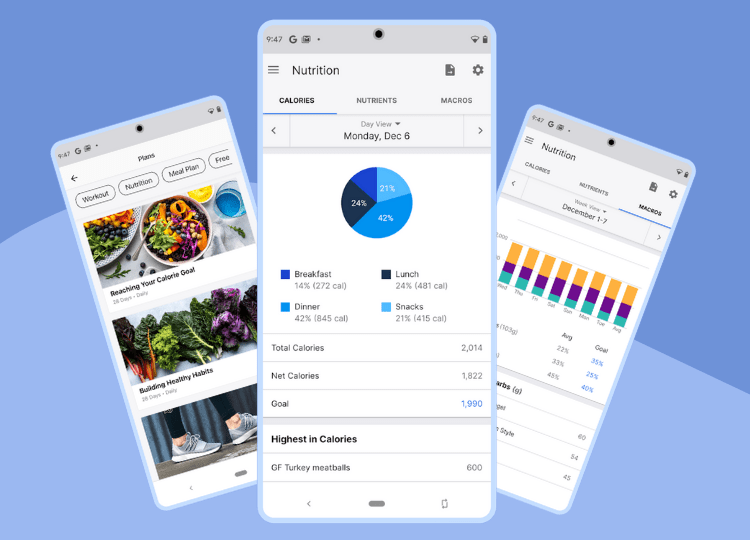
If you aren’t following a rigid meal plan, tracking your food is the best way to ensure you’re hitting your goals while still enjoying the foods you love. MyFitnessPal (MFP) is a powerful tool, but it can feel cluttered.
So here is Coach Jeff’s straightforward guide on how to set up your targets and log your food efficiently using the free version of the app.
Phase 1: Setting Your Calories & Macros
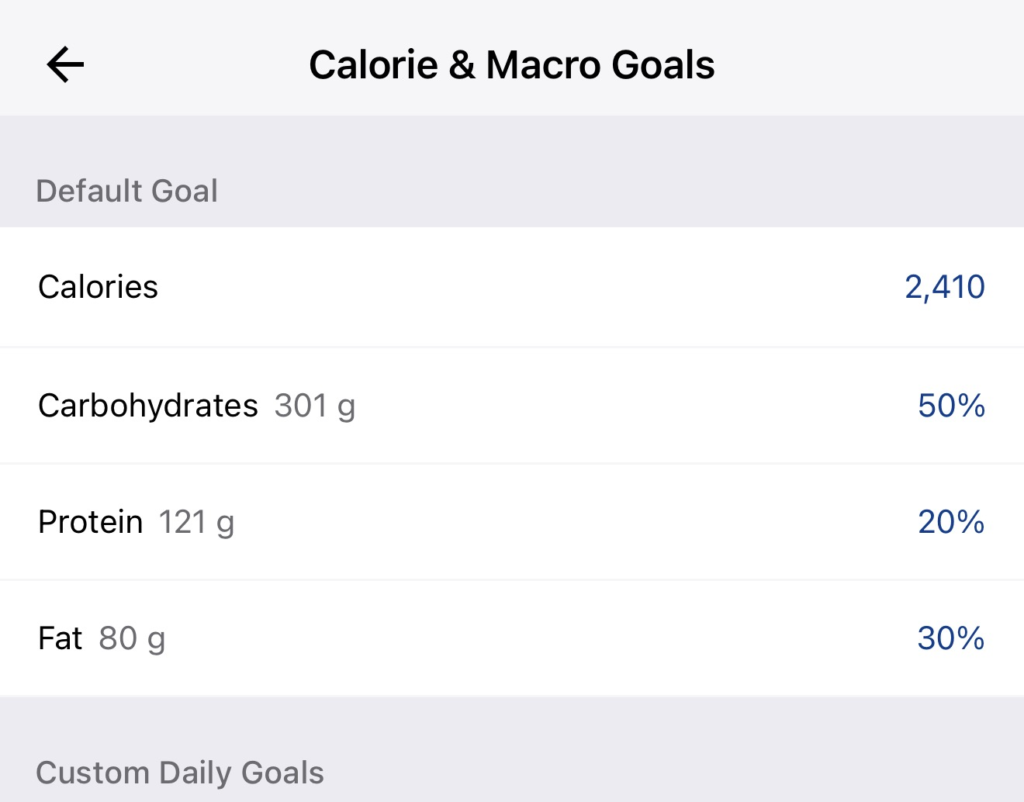
In the free version of the app, you cannot set exact gram targets (e.g., “165g of protein”), but you can get very close using percentages.
- Open the App and tap “More” (bottom right corner).
- Select “Goals.”
- Under the Nutrition Goals section, tap “Calorie, Carbs, Protein and Fat Goals.”
- Set your Calories: Tap on “Calories” and enter the daily total provided by your coach.
- Set your Macros: Tap on any of the macronutrients (Proteins, Carbs, or Fats). A wheel will appear. Adjust the percentages until the total equals 100% and the gram amounts closely match the targets we discussed.
- Note: The free version moves in 5% increments, so just get as close as possible to your target that I have provided on our coaching conversation.
Phase 2: How to Log Your Food
Consistency is more important than perfection. Try to log your food as you eat it, or even the night before.
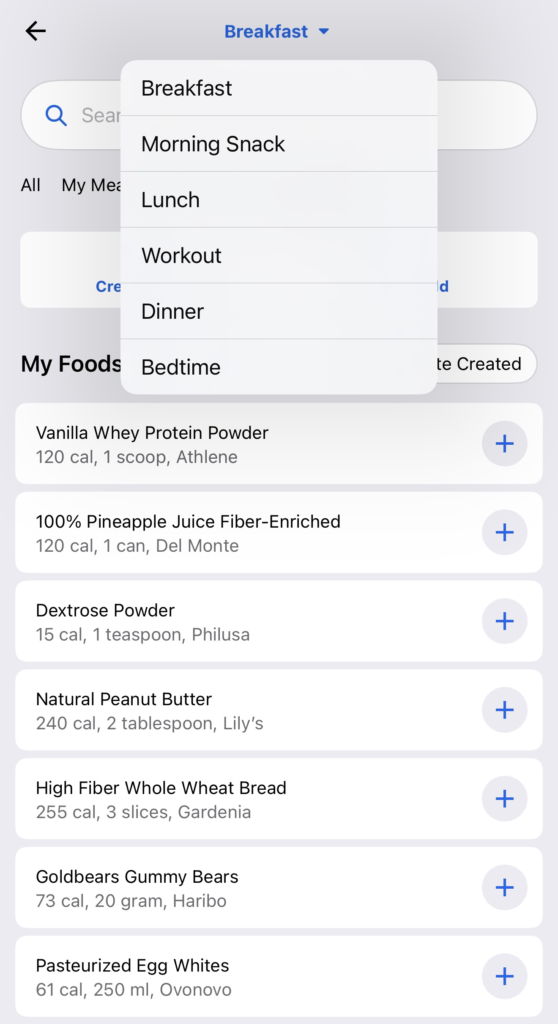
- Go to your Diary: Tap the “Diary” icon at the bottom of the screen.
- Add Food: Tap “Add Food” under the specific meal (Breakfast, Lunch, etc.).
- Search the Database: Type the name of the food in the search bar.
- Pro Tip: To find the most accurate entries, add the word “USDA” (for whole foods like “USDA Chicken Breast”) or look for items with a green checkmark, which indicates a verified entry.
- Use the Barcode Scanner: If you have a packaged item, tap the Barcode Icon next to the search bar. Scan the UPC code on the package for an instant match.
- Note: If the scanner is locked behind a “Premium” wall in your region, simply search for the brand name and product manually.
- Adjust the Serving Size: This is the most important step. Tap on “Serving Size” or “Number of Servings” to match what you actually ate.
- Example: if the entry is for 100g and you ate 150g, change the “Number of Servings” to 1.5.
3 Tips for Success
- Weigh in Grams: For the highest accuracy, weigh your food in grams rather than using “cups” or “spoons.” Volume measurements (like a “cup of rice”) are often inaccurate.
- Don’t “Eat Back” Exercise Calories: MyFitnessPal often adds extra calories to your daily total because you walked or worked out. Ignore this. Stick to the original calorie goal we set to ensure you stay on track.
- Use the “Multi-Add” Feature: If you’re eating the same lunch as yesterday, tap “Add Food” and look at your “Recent” or “Frequent” list. You can select multiple items at once to save time.
The Goal: You don’t need to be 100% perfect. Aim to be within +/- 50 calories and +/- 10g of your protein target every day!
If you have any questions about MyFitnessPal, hit me up on WhatsApp!